
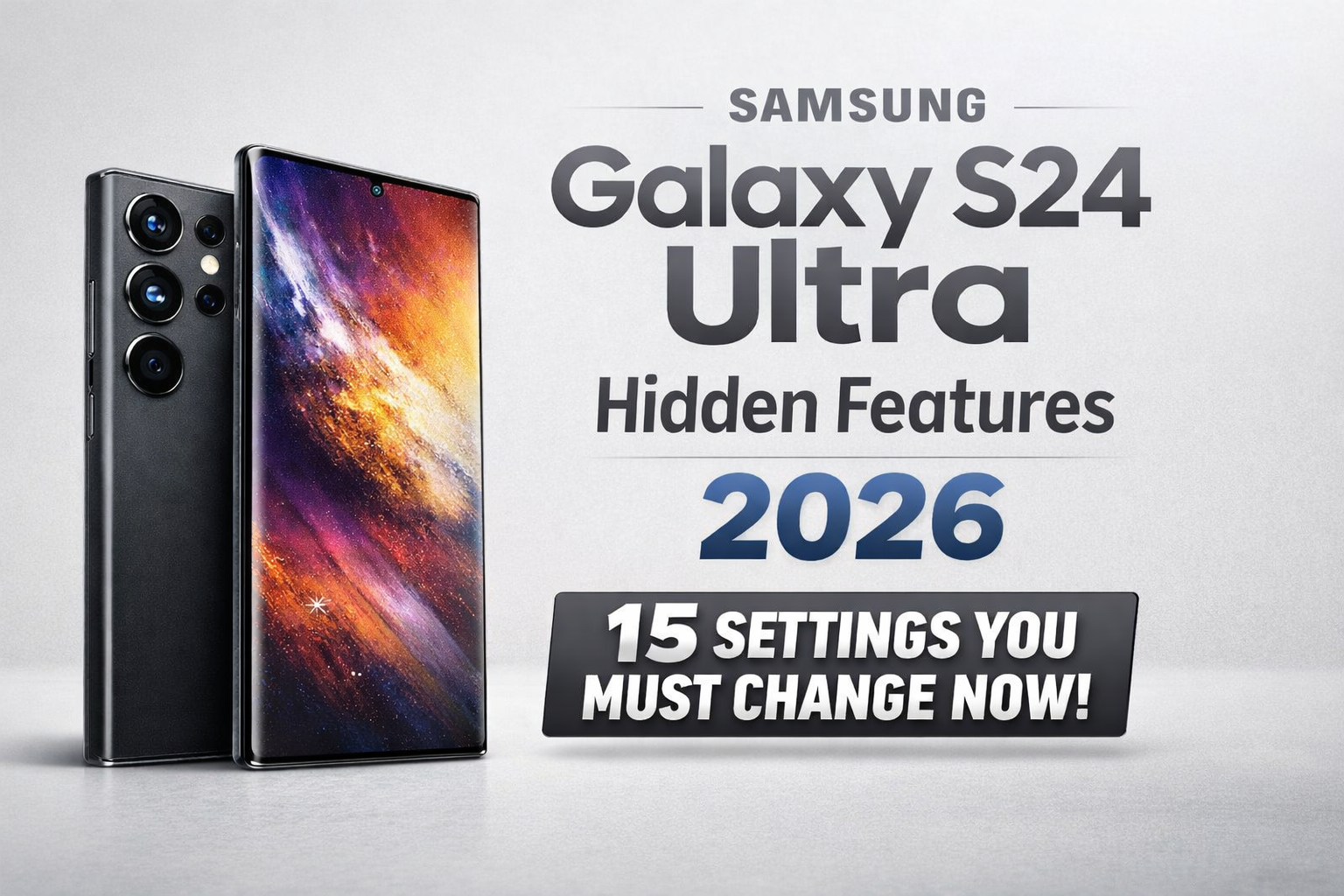

Samsung Galaxy S24 Ultra
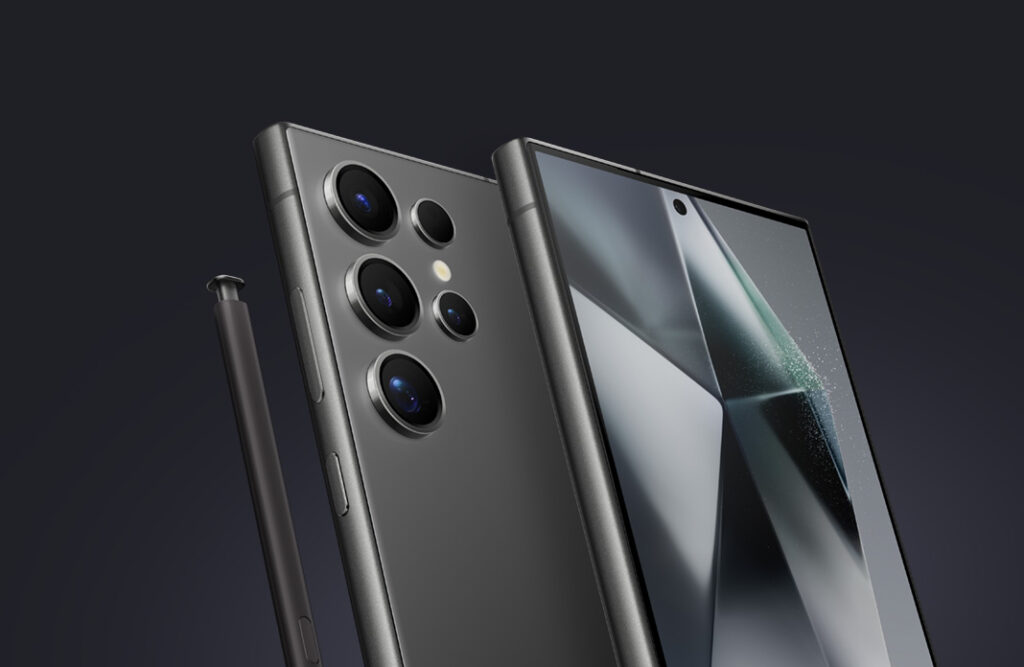
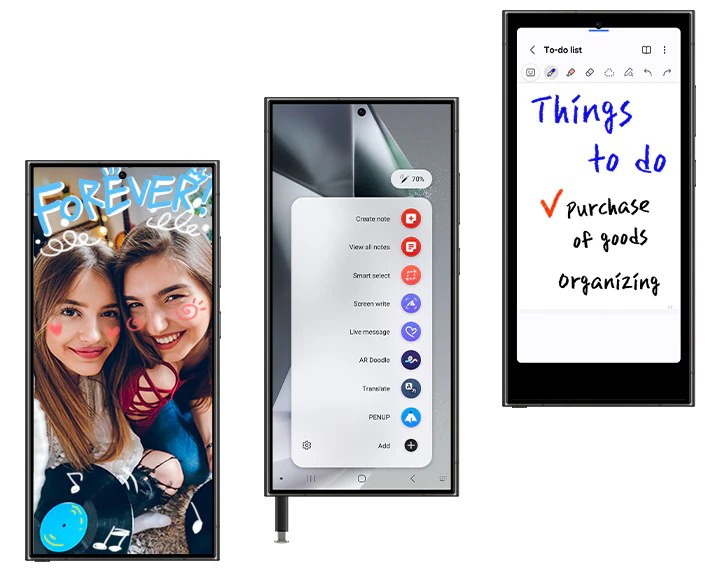
The Samsung Galaxy S24 Ultra hidden features 2026 guide you’ve been searching for is finally here.
If you own the powerful Samsung Galaxy S24 Ultra, chances are you’re only using 60% of its potential. Running on One UI 6.1 based on Android 14 (with 2026 updates rolling out), this phone is packed with powerful AI tools, camera tricks, and performance boosts.
In this guide, I’ll show you the best Samsung S24 Ultra settings to change, improve battery life, boost gaming performance, and unlock secret features most users miss.
Let’s dive in.
1️⃣ Turn On Adaptive Battery Protection (Improve Battery Health)
Go to:
Settings → Battery → Battery Protection
Enable Maximum Protection to limit charging to 80%.
This helps:
- Improve S24 Ultra battery health
- Reduce long-term degradation
- Prevent overheating
If you’re planning to use this device for 3–4 years, this setting is a must.
If you’re planning to upgrade soon, you might also want to check out our detailed breakdown of the upcoming Samsung Galaxy S26 Ultra, including expected specs and pricing.
2️⃣ Enable QHD+ for Best Display Quality
Go to:
Settings → Display → Screen Resolution
Switch to QHD+ (3120×1440).
Many users still run it on FHD+.
If you bought a flagship, use it fully.
3️⃣ Activate Galaxy AI Features
Galaxy AI
Go to:
Settings → Advanced Features → Advanced Intelligence
Turn on:
- Live Translate
- AI Summary
- Chat Assist
- Note Assist
These are part of Samsung’s AI push after Samsung Galaxy S24 series launch.
Official info:
https://www.samsung.com/global/galaxy/galaxy-ai/
4️⃣ Improve Camera Quality with Hidden Settings



Go to Camera → Settings:
Enable:
- 200MP mode for daylight
- Nightography auto
- HDR10+ video
- Super HDR
This dramatically improves dynamic range and sharpness.
5️⃣ Reduce Animations to Make Galaxy S24 Ultra Faster
Enable Developer Options:
Settings → About Phone → Tap “Build Number” 7 times
Then:
Developer Options → Set:
- Window animation scale: 0.5x
- Transition animation scale: 0.5x
- Animator duration scale: 0.5x
This makes your phone feel 30% faster instantly.
6️⃣ Customize Always On Display (AOD)
Go to:
Settings → Lock Screen → Always On Display
You can:
- Add widgets
- Add custom clock
- Add Now Playing info
This improves daily usability.
7️⃣ Turn On RAM Plus Smartly
Settings → Battery and Device Care → Memory → RAM Plus
Set to 4GB or 6GB.
Don’t set too high unless you multitask heavily.
8️⃣ Enable Light Performance Mode for Battery Saving
Settings → Device Care → Performance Profile
Switch to Light Mode.
This improves:
- S24 Ultra battery saving settings
- Reduces heating
- Keeps performance stable
9️⃣ Turn Off Auto Optimization at Night
Sometimes it restarts the phone unexpectedly.
Go to:
Device Care → Auto Optimization → Disable Auto Restart
🔟 Use Edge Panels Smartly
Settings → Display → Edge Panels
Add:
- Apps panel
- Clipboard panel
- Smart Select
This boosts productivity massively.
11️⃣ Enhance Gaming Performance
Settings → Advanced Features → Game Booster
Enable:
- Alternate Game Performance Management
- Low refresh mode for battery saving
Perfect for BGMI & COD players.
12️⃣ Use Secure Folder for Privacy
Secure Folder
Protect:
- Banking apps
- Private photos
- Social accounts
Security is underrated on Android.
13️⃣ Enable Dolby Atmos
Settings → Sounds and Vibration → Sound Quality → Dolby Atmos → On
Better sound instantly.
14️⃣ Turn On Protect Battery During Gaming
Game Booster → Block during games:
- Calls
- Notifications
- Gestures
Improves focus + performance.
15️⃣ Optimize Storage with Auto Delete Cache
Settings → Device Care → Storage → Clean Now
Do this once a month.
🔥 Final Thoughts
The Samsung Galaxy S24 Ultra hidden features 2026 listed above can:
- Improve performance
- Boost battery life
- Upgrade camera quality
- Enhance privacy
- Make your phone feel brand new
If you’re serious about unlocking the full potential of the Samsung Galaxy S24 Ultra, start applying these settings today.
Samsung Galaxy S24 Ultra Hidden Features 2026 – Frequently Asked Questions
1️⃣ What are the best hidden features of Samsung Galaxy S24 Ultra in 2026?
The best Samsung Galaxy S24 Ultra hidden features in 2026 include Adaptive Battery Protection, Galaxy AI tools, 200MP camera mode, Light Performance Mode, RAM Plus optimization, and Developer animation tweaks. These settings improve battery life, speed, and overall performance.
2️⃣ How can I make my Galaxy S24 Ultra faster?
To make your Samsung Galaxy S24 Ultra faster:
- Reduce animation scale to 0.5x in Developer Options
- Enable Light Performance Mode
- Clear storage cache regularly
- Optimize RAM Plus settings
These tweaks noticeably improve responsiveness.
3️⃣ Does Galaxy S24 Ultra have hidden AI features?
Yes. The S24 Ultra includes advanced Galaxy AI tools such as Live Translate, Note Assist, Chat Assist, and AI Summary. These features are part of Galaxy AI and are accessible in Advanced Intelligence settings.
4️⃣ What is the best battery setting for Galaxy S24 Ultra?
The best battery settings for S24 Ultra are:
- Enable Battery Protection (limit charge to 80%)
- Use Light Performance Mode
- Turn on Adaptive Battery
- Reduce screen resolution when needed
These help improve battery health and reduce long-term degradation.
5️⃣ How do I improve camera quality on Samsung Galaxy S24 Ultra?
To improve camera quality:
- Enable 200MP mode in daylight
- Turn on Super HDR
- Use Nightography for low light
- Enable HDR10+ for video
The S24 Ultra camera system in the Samsung Galaxy S24 series is optimized for both AI processing and manual Pro controls.
6️⃣ Is RAM Plus good for Galaxy S24 Ultra?
Yes, but use it wisely. Setting RAM Plus to 4GB or 6GB is ideal for multitasking. Setting it too high may not significantly improve performance.
7️⃣ Should I use QHD+ resolution on S24 Ultra?
Yes. The S24 Ultra features a premium AMOLED display designed for QHD+ resolution. If battery isn’t a concern, QHD+ delivers sharper visuals and better media experience.
8️⃣ Is it safe to enable Developer Options on Galaxy S24 Ultra?
Yes, enabling Developer Options is safe if you only adjust animation scales. Avoid changing advanced system settings unless you understand their function.
Also Read Samsung S24 Ultra Long-Term Review: Should You Buy It in 2026 After the S26 Ultra Launch?
[…] Also Read Samsung Galaxy S24 Ultra Hidden Features 2026: 15 Settings You Must Change Now […]