
You just finished editing a great video. The cuts are clean, the music is synced, the pacing is perfect. Then you hit export — and a giant watermark slaps itself right across the middle of your footage. Sound familiar?
Most ‘free’ video editing apps in 2026 are free in name only. They give you the editor, but they lock the clean export behind a paywall. It’s one of the most frustrating experiences for beginner creators, students, and anyone who just wants to make videos without spending money.
I’ve been testing video editing apps for over two decades now — from desktop software on Windows XP to mobile-first apps on the latest Android flagships. And after going through dozens of free tools this year, I can tell you: there ARE apps that are genuinely free, export without a watermark, and don’t nag you to subscribe every five minutes. Here are the seven best ones in 2026.
What Does ‘No Watermark, No Subscription’ Actually Mean?
Before we get into the list, let’s clarify something that a lot of articles gloss over. There are three types of ‘free’ video editors:
- Actually free: No watermark, no export limit, no subscription. The core editing features are free forever.
- Freemium: Free to use, but watermarked exports unless you pay. (Looking at you, VN Video Editor’s premium mode.)
- Free trial: Fully functional for 7–30 days, then locked. Not free.
Every app on this list falls in the first category — genuinely free for the core editing workflow. Some may offer premium upgrades, but the free tier is legitimately usable without a watermark.
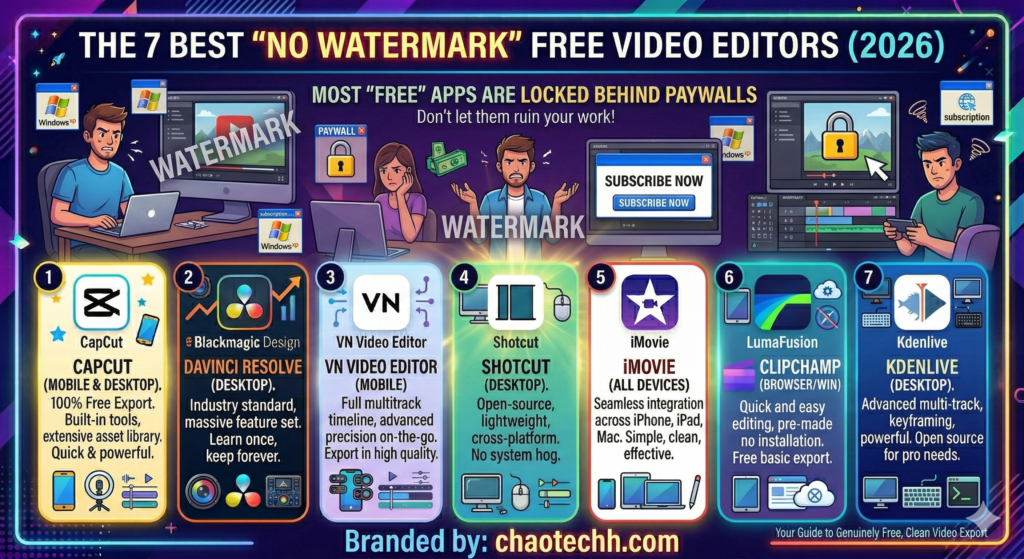
7 Best Free Video Editing Apps in 2026 (No Watermark)
1. CapCut — Best for Reels, Shorts & Viral Content
CapCut remains the king for mobile-first short-form content in 2026. Developed by ByteDance, it’s the go-to for Instagram Reels, YouTube Shorts, and anything trending. The free tier exports in full HD without a watermark — which is genuinely rare for an app this polished.
What makes CapCut special is its template ecosystem. You can literally open the app, tap a trending template, replace the clips, and export in under three minutes. For Indian creators who need to move fast on trends, that’s a superpower.
What I Like:
- Trending templates updated weekly
- Auto-captions with decent Hindi/English accuracy
- AI background remover in free tier
- Available on Android, iOS, and Windows
What I Don’t Like:
- Some AI features being moved to CapCut Pro in 2026
- Cloud storage required for cross-device projects
- Regulatory uncertainty in some markets (ByteDance-owned)
Best For: Instagram Reels creators, YouTubers, beginners who want fast results.
2. DaVinci Resolve — Best Free Desktop Video Editor (Full Stop)
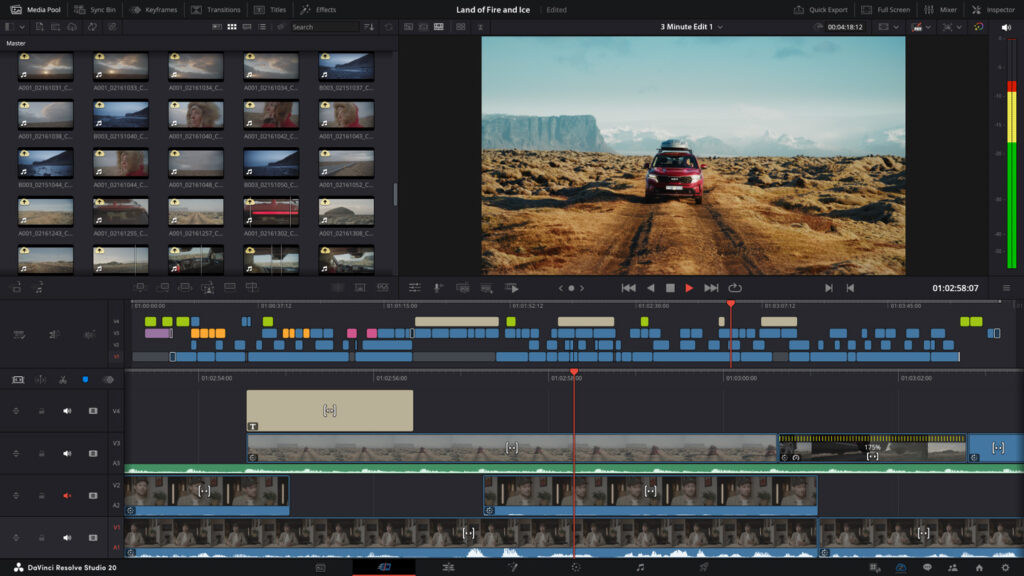
If you’re editing on a PC or Mac and want professional-grade results without paying a rupee, DaVinci Resolve is the answer. The free version is absurdly powerful — it’s the same software used to color grade Hollywood films like Oppenheimer and Avengers.
The learning curve is steep, no question. But once you get past the first week, you’ll wonder why anyone pays for Premiere Pro. For YouTubers who shoot long-form content and need proper color correction, audio mixing, and multi-track timelines, nothing else comes close at this price point (which is zero).
What I Like:
- Professional-grade color grading tools
- Multi-track audio editing built in
- No watermark, no export limits
- Regular updates from Blackmagic Design
What I Don’t Like:
- Requires a decent GPU — struggles on low-end PCs
- Not available on Android/iOS
- Intimidating UI for absolute beginners
Best For: YouTubers, filmmakers, desktop creators who are serious about quality.
3. VN Video Editor — Best Free Mobile Editor for Long-Form Content
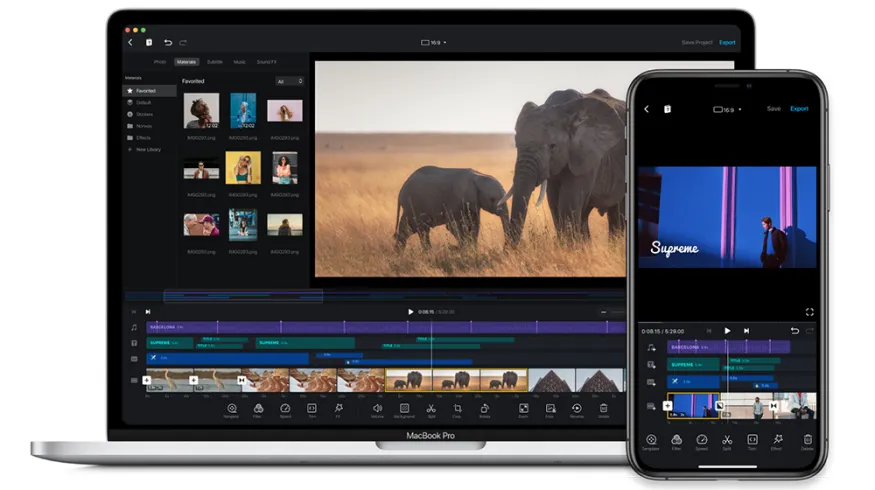
VN Video Editor (Video Niche) is the best-kept secret in mobile video editing. While CapCut gets all the hype, VN quietly offers a multi-track timeline on mobile — something most free apps simply don’t have. It exports with no watermark, no subscription, and it runs smoothly even on mid-range Android phones.
I’ve recommended VN to dozens of beginner creators in India who film on their phones, and it consistently delivers. The keyframe animation support alone makes it worth the download.
What I Like:
- Multi-track timeline on mobile
- Keyframe animations for text and effects
- Works great on mid-range Android phones
- No watermark, completely free
What I Don’t Like:
- Smaller template library than CapCut
- Less active community and fewer tutorials
Best For: Long-form YouTube creators editing on mobile, Android users on a budget.
4. Kdenlive — Best Free Open-Source Desktop Editor
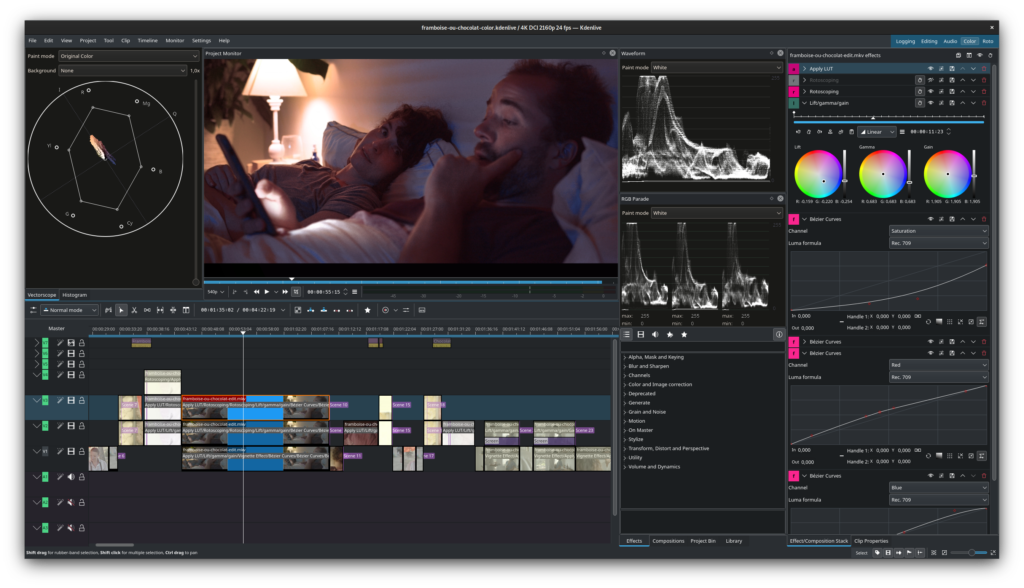
Kdenlive is the hidden gem of free desktop video editors. Open-source, community-driven, and surprisingly capable, it runs well even on older Windows 10 machines with integrated graphics — something DaVinci Resolve struggles with.
It’s not as flashy as Premiere, but for straightforward editing — cuts, transitions, titles, audio sync — Kdenlive gets the job done reliably. And since it’s completely open-source, there’s never a watermark, never a subscription, never a forced upgrade.
What I Like:
- Runs on low-spec PCs (integrated graphics friendly)
- Multi-track timeline with proxy editing
- Completely open-source and free forever
- Available on Windows, Mac, and Linux
What I Don’t Like:
- UI feels dated compared to modern editors
- Occasional stability issues on older builds
Best For: Students, low-spec PC users, Linux users, open-source enthusiasts.
5. iMovie — Best Free Editor for iPhone and Mac Users
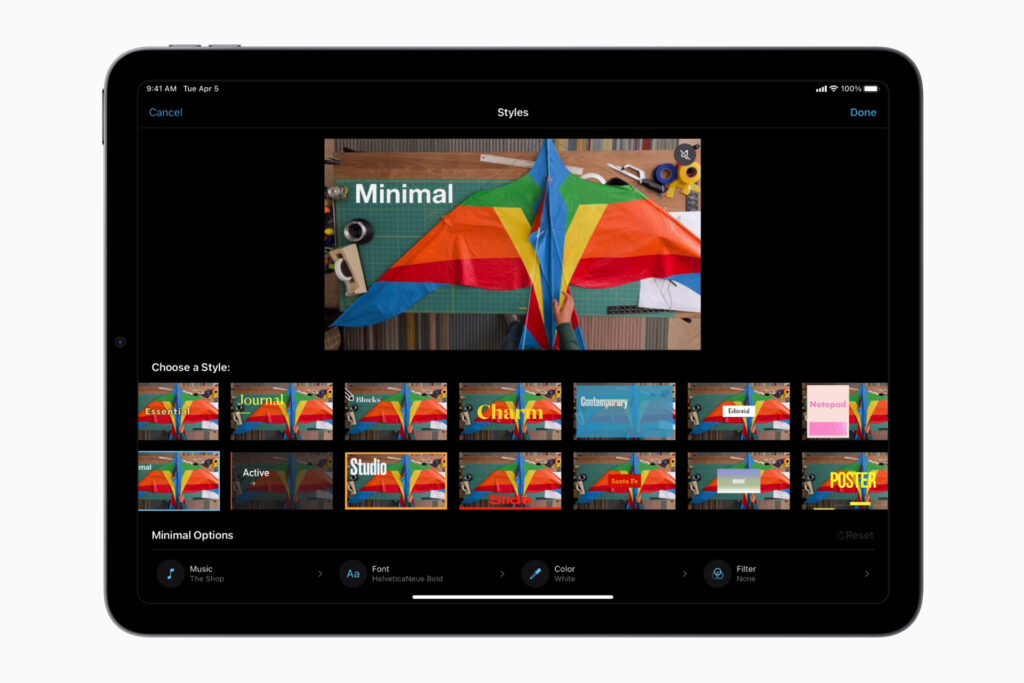
If you’re in the Apple ecosystem, iMovie is already installed on your device and it’s completely free — no watermarks, no subscriptions. It’s not the most feature-rich editor on this list, but the quality-to-effort ratio is unmatched. Drag in your iPhone footage, add a few transitions, pick a soundtrack from its built-in library, and export in 4K.
The theatrical trailer templates are a fun touch, and the direct integration with Photos and iCloud makes the workflow seamless. For casual creators who just want clean, watchable output fast, iMovie is often the best answer.
What I Like:
- Pre-installed on iPhone and Mac — zero setup
- Exports in 4K, no watermark
- Excellent for travel videos and vlogs
- Seamless Apple ecosystem integration
What I Don’t Like:
- Apple-only — no Android or Windows
- Limited advanced features (no keyframes, limited color tools)
Best For: iPhone users, Mac owners, casual creators, vloggers.
6. Clipchamp — Best Free Video Editor Built Into Windows 11
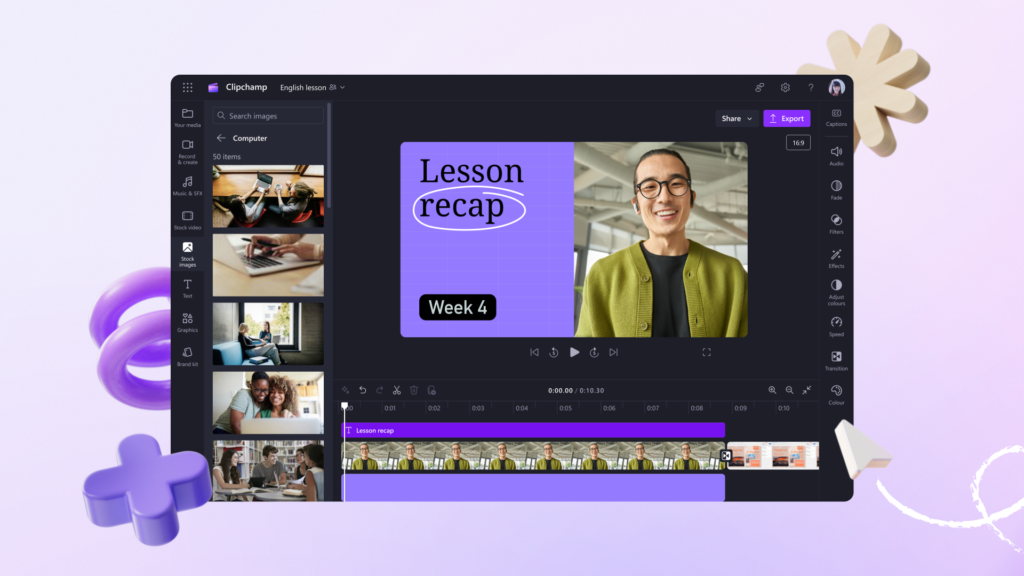
Microsoft’s Clipchamp is now built into Windows 11 and it’s significantly more capable than it looks. For creators who just want a quick, clean edit without installing anything, Clipchamp is perfect — transitions, text overlays, stock footage access, and clean exports are all available in the free tier.
The browser-based version also works on Chrome, which makes it handy even outside Windows. In 2026, Clipchamp has gotten better AI features including auto-captions and a basic background replacement tool in the free plan.
What I Like:
- Built into Windows 11 — zero installation needed
- Clean, beginner-friendly interface
- Free auto-captions in 2026
- Stock footage and music library included
What I Don’t Like:
- Requires internet connection (cloud-based processing)
- Export resolution limited to 1080p on free plan
- Less suited for short-form content creation
Best For: Office and Windows 11 users, corporate creators, casual editors who want zero setup.
7. Canva Video Editor — Best for Creators Who Think Visually
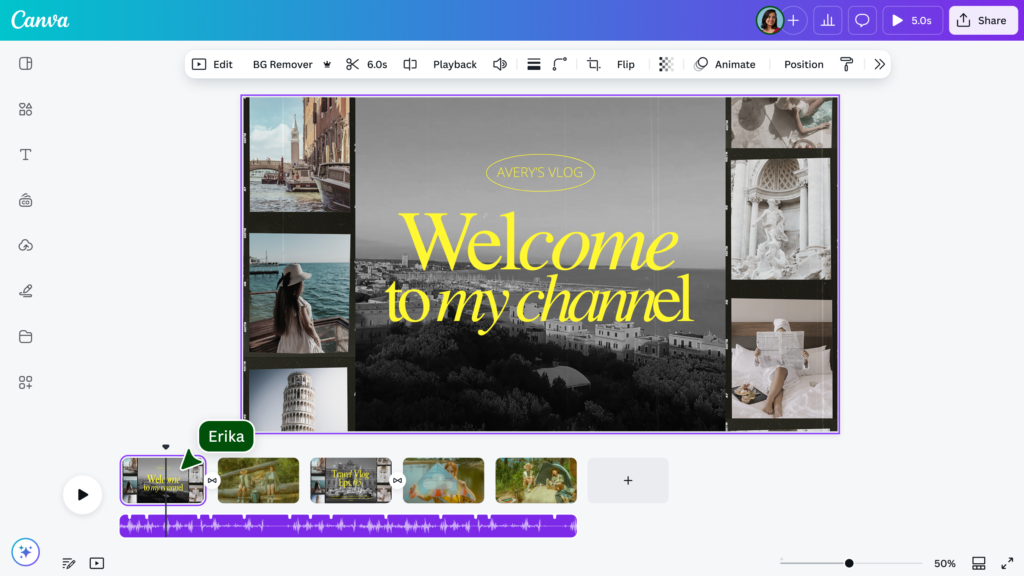
Canva’s video editor often gets underestimated because it’s seen as a ‘design tool.’ But in 2026, Canva’s free video editor is genuinely good for creators who need polished, branded content without a steep learning curve. The drag-and-drop interface, massive library of free templates, and one-click animations make it ideal for social media content, presentations, and YouTube thumbnails with embedded clips.
The free plan exports without a watermark on most templates, though some premium elements do carry restrictions. For beginner creators who need both graphics and video in one tool, Canva is a legitimate choice.
What I Like:
- Design and video in one platform
- Thousands of free templates
- No learning curve — drag and drop
- Great for branded social content
What I Don’t Like:
- Not ideal for long-form or cinematic content
- Some premium elements watermarked unless removed
- Requires internet — no offline mode
Best For: Social media managers, educators, bloggers, brand creators.
Quick Comparison: All 7 Free Video Editors at a Glance
| App | Platform | No Watermark | Offline | Best For |
| CapCut | Android, iOS, Windows | Yes (free tier) | Yes | Reels, Shorts, Beginners |
| DaVinci Resolve | Windows, Mac, Linux | Yes | Yes | Pro desktop editing |
| VN Video Editor | Android, iOS | Yes | Yes | Long-form mobile editing |
| Kdenlive | Windows, Mac, Linux | Yes | Yes | Low-spec PC users |
| iMovie | iPhone, Mac | Yes | Yes | Apple users, vloggers |
| Clipchamp | Windows, Web | Yes (1080p) | No | Windows 11 users |
| Canva Video | Web, Android, iOS | Mostly free | No | Social media creators |
Which Free Video Editor Should You Choose? (By User Type)
- I’m a beginner on Android: Start with CapCut. It’s the most beginner-friendly with the highest-quality output in the shortest time.
- I want to get serious about YouTube: Move to DaVinci Resolve on desktop. It’s a one-time learning investment that pays off for years.
- I shoot long-form videos on my phone: VN Video Editor gives you desktop-level control on a mobile screen.
- I have an old Windows laptop: Kdenlive is your best bet — lightweight, capable, and free forever.
- I’m on iPhone: iMovie is already installed. Just use it.
- I’m a social media manager: Canva Video handles graphics and video in one place — saves you two apps.
- I work on Windows 11 and need something quick: Clipchamp is built in. Open it, edit, done.
Pro Tips and Hidden Features You Probably Don’t Know
- CapCut: Long-press on any template to preview it without opening. Saves time when browsing trends.
- DaVinci Resolve: Press Ctrl+Shift+H to open the Color Wheels directly. Most beginners never find this shortcut.
- VN Video Editor: Use the ‘Ratio’ button before starting your project — it saves you from reformatting at the end.
- Kdenlive: Enable ‘Proxy Clips’ under Project settings for smoother playback on low-spec machines.
- iMovie: Hold the Fn key while trimming a clip for frame-by-frame precision — most people don’t know this.
- Clipchamp: Use the ‘Record’ tab to capture your screen AND webcam simultaneously — great for tutorials.
- Canva: Use Ctrl+D to duplicate any element instantly. Speeds up template customization significantly.
Frequently Asked Questions (FAQ)
Which free video editing app is best in India in 2026?
CapCut is the best free video editing app for most Indian users in 2026 — it works smoothly on mid-range Android phones, exports without a watermark, supports Hindi captions, and has a large library of trending Reels and Shorts templates.
Is CapCut really free with no watermark?
Yes. As of 2026, CapCut’s free tier allows you to export videos in up to 1080p without a watermark. Some AI-powered features have been moved to CapCut Pro, but the core editing workflow remains free and watermark-free.
Which free video editor is best for YouTube?
For YouTube, DaVinci Resolve is the best free desktop option — it has no watermark, no export limits, and supports 4K. For mobile YouTubers, VN Video Editor is the strongest free choice thanks to its multi-track timeline and clean exports.
Can I edit videos for free on PC without a watermark?
Yes. DaVinci Resolve, Kdenlive, and Clipchamp (Windows 11) are all genuinely free desktop video editors that export without a watermark. DaVinci Resolve is the most powerful of the three, while Kdenlive runs best on low-spec machines.
What is the best free video editor for Instagram Reels?
CapCut is specifically designed for short-form content like Reels and YouTube Shorts. Its trending templates, auto-captions, and music sync tools make it the top choice for Reels creators in 2026.
Is DaVinci Resolve free forever?
Yes. DaVinci Resolve’s free version is not a trial — it’s free forever with no time limit and no watermark. Blackmagic Design offers a paid Studio version with additional AI features, but the free version is more than enough for most creators.
Which free video editor works on low-end Android phones?
CapCut and VN Video Editor both work well on mid-range and budget Android phones. VN is particularly lightweight and handles longer timelines without overheating most devices.
Final Verdict: My Honest Recommendation
After testing all seven of these apps in real-world conditions — editing on a mid-range Android, a low-spec Windows laptop, and a MacBook — here’s where I land:
- Best overall free video editor: CapCut (mobile) / DaVinci Resolve (desktop)
- Best for Indian creators on Android: CapCut or VN Video Editor
- Best for serious YouTubers: DaVinci Resolve
- Best for low-spec PCs: Kdenlive
- Best zero-effort option: iMovie (Apple) / Clipchamp (Windows 11)
The watermark problem is real — and it’s designed to push you toward a subscription. But in 2026, you genuinely don’t have to pay to edit clean, professional-looking videos. The tools above prove that. Start with CapCut or DaVinci Resolve depending on your device, and you’ll be exporting watermark-free content before the end of the week.
Found this article helpful? Share it with a fellow creator who’s still fighting the watermark war. And if you want more free tool recommendations for Indian creators, check out our related guides below.
Don’t Miss these I Cloned My Voice Using Free AI and Made a Full Song — Here’s Exactly How I Did It [2026]
I Made a Full Music Video in 30 Minutes Using Free AI Tools in 2026 — Here’s the Exact Workflow
Top 10 AI Agents to Scale Your Content Business in India (2026 Guide)